
Every piece of content has a shelf life. A limited-time offer that runs past its deadline, a seasonal announcement left live in January, a job listing that filled months ago — these are the kinds of posts that quietly erode trust and clutter your site. The problem is not that content expires; the problem is remembering to take it down.
Post Expiry Manager solves this completely. Set a date and time on any post or page, choose what happens when it expires, and walk away. The plugin handles the rest automatically — no reminders, no manual checks, no forgotten posts.
Set It Once, Forget It Forever
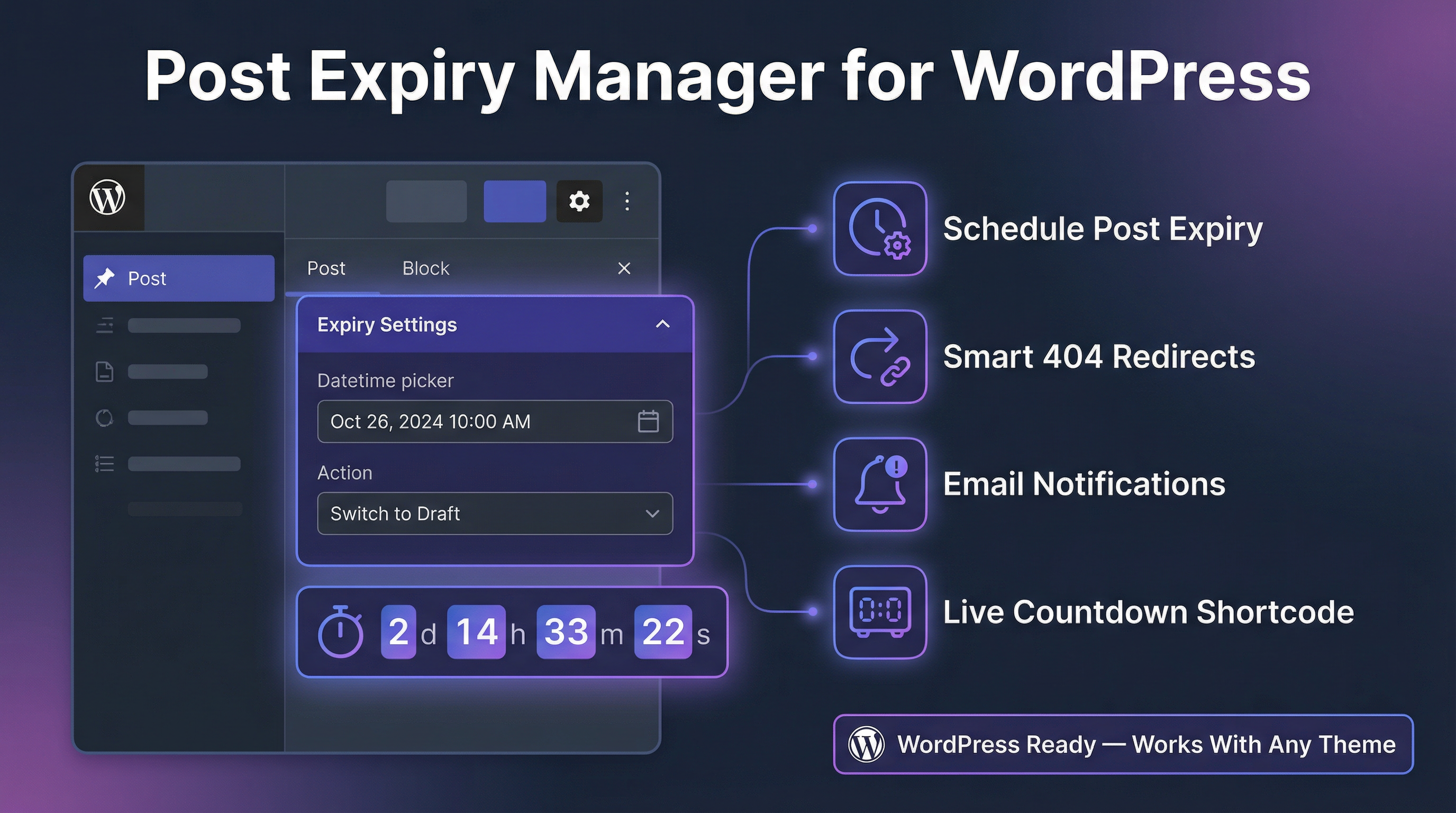
Adding an expiry to any post takes seconds. A clean meta box sits in the sidebar of every post and page editor with two fields: a date/time picker and an action selector. Pick when the content should expire, choose whether it should be unpublished, moved to trash, or archived to a category, and save. That is all there is to it.
The plugin runs a background check every 15 minutes via WordPress cron, and also performs a throttled check on each page load to catch anything that slipped through. In practice, content expires within seconds of its scheduled time.
Three Expiry Actions
Not all expired content should be treated the same way. Post Expiry Manager gives you three options for what happens when a post reaches its expiry date:
Switch to Draft unpublishes the post immediately. It disappears from the front end but stays in your WordPress admin exactly as it was. This is ideal for seasonal content, promotions, or anything you may want to republish later.
Move to Trash removes the post entirely from public view and places it in the WordPress trash. The content is recoverable for 30 days before WordPress permanently deletes it.
Archive to Category keeps the post published but reassigns it to an “Archived” category. This is useful for news sites, blogs, or any site where old content should remain accessible but clearly marked as no longer current.
Live Countdown Shortcode (Pro)
Pro users can add a live ticking countdown timer to any post using the shortcode. The timer automatically reads the expiry date set in the meta box and counts down in real time, updating every second in the browser.
Two visual styles are available: a clean digital emoji timer and an animated SVG stopwatch. Size options (small, medium, large) and full colour control — background and text — are all configurable directly from the post editor without touching any code. When the post expires, the timer automatically switches to an “Offer Expired” state.
Smart 404 Redirect (Pro)
When a post is unpublished or trashed, visitors who follow old links or bookmarks will normally land on a 404 error page. Pro users get automatic smart redirect handling: if someone visits the URL of an expired post, they are silently redirected to the homepage with a 301 redirect instead of seeing an error. This protects user experience and prevents broken links from damaging your SEO.
Email Notifications (Pro)
Pro users receive an automatic email notification when any post expires. The notification is sent to the post author and includes the post title, the action that was taken, and a link to the WordPress admin. This is particularly useful on multi-author sites where contributors need to know when their content has been automatically managed.
Expiry Status Column in Posts List
Every post and page list in the WordPress admin gains an Expiry Date column. At a glance you can see which posts are scheduled for expiry, which are overdue and pending processing, and which have already been expired. Status badges — Scheduled, Processing, and Expired — make the state of each post immediately clear without having to open individual posts.
Full Audit Log Dashboard
The plugin adds a dedicated Expiry Manager dashboard to your WordPress admin. The left panel shows the full active queue — every post currently scheduled for expiry, sorted by date, with the action that will be taken. The right panel shows a live audit log of the last 15 posts that were processed, with timestamps.
The dashboard supports both light and dark mode, toggled with a single click, and the preference is remembered across sessions.
Free vs Pro
| Feature | Free | Pro |
|---|---|---|
| Set expiry date and action | ✓ | ✓ |
| Expiry status admin column | ✓ | ✓ |
| Dashboard with active queue | ✓ | ✓ |
| Audit log | ✓ | ✓ |
| Active expiries | 1 post | Unlimited |
| Countdown shortcode | ✗ | ✓ |
| Smart 404 redirect | ✗ | ✓ |
| Email notifications | ✗ | ✓ |
| Countdown visual editor | ✗ | ✓ |
Get Post Expiry Manager
Post Expiry Manager is available now from SkillfulPlugins. The free version can be downloaded and activated immediately. Pro is available for a one-time payment of $29 with no subscription required.
In the post editor, use the meta box located in the sidebar to select the expiry date and time. Then, choose the desired action: unpublish, move to trash, or archive.
Yes, posts moved to the trash remain in the WordPress trash for 30 days, allowing you to recover them before they are permanently deleted.
You can choose to 'Archive to Category.' This keeps the post published but reassigns it to an 'Archived' category, making it clear it's no longer current.
The plugin runs efficient background checks every 15 minutes and performs a throttled check on each page load to ensure minimal impact on site performance.
Pro users can add a countdown timer using a shortcode in the post editor. Customize its appearance directly without needing to write code, and it will automatically reflect the expiry date.
Pro users benefit from smart 404 redirect handling, which automatically redirects visitors to the homepage, preventing user experience issues and broken links.
The WordPress admin includes an Expiry Date column in post lists, showing expiry status for each post with badges indicating whether they're scheduled, processing, or expired.
Yes, the Expiry Manager dashboard provides a live audit log showing the last 15 posts processed for expiry, complete with timestamps and actions taken.
Pro users receive email notifications when a post expires. The email includes the post title, action taken, and a link to WordPress admin, useful for multi-author sites.
Yes, the Expiry Manager dashboard supports both light and dark mode, which can be toggled with a single click and the preference is saved for future sessions.
Ready to get started with Post Expiry Manager?
Download it today and start using it on your WordPress site.