WP Image Resizer for WordPress: Resize, Crop, Convert, and AI-Tag Your Images Without Leaving the Dashboard
Every WordPress site owner eventually faces the same friction: an image that is the wrong size, the wrong format, or missing the alt text and metadata that search engines need. The standard workflow — download the file, open an external editor, make the changes, re-upload, re-attach — is slow, repetitive, and interrupts the work of building and maintaining a site.
WP Image Resizer eliminates that workflow entirely. It puts a full image editing suite directly inside your WordPress dashboard, covering resizing, cropping, format conversion, and AI-powered metadata generation in a single tool.
What Is WP Image Resizer?
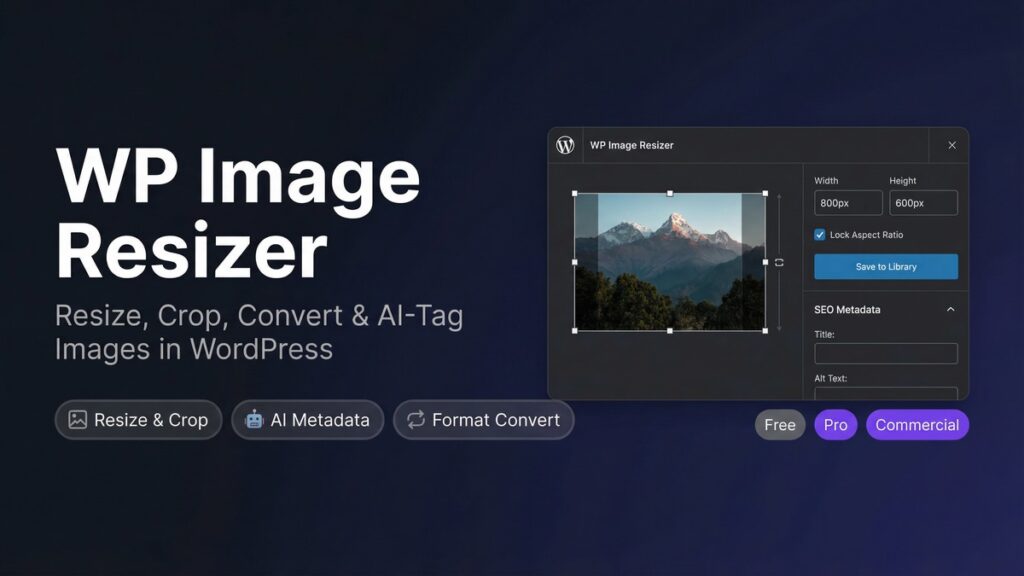
WP Image Resizer is a WordPress plugin that allows you to edit images from your Media Library without using any external software. You can resize images to exact pixel dimensions, crop them to a specific area or aspect ratio, convert between JPG, PNG, and WebP formats, and use AI to automatically generate SEO-optimised titles, alt text, captions, and descriptions.
All processed images are saved directly back to your Media Library, ready to use immediately on any post or page.
Why Image Optimisation Matters for WordPress Sites
Images are the single largest contributor to page weight on most WordPress sites. Oversized images slow down page load times, which directly affects both user experience and search engine rankings. Google’s Core Web Vitals metrics — particularly Largest Contentful Paint — are heavily influenced by image size and format.
Beyond performance, image metadata matters for SEO. Alt text tells search engines what an image contains, which contributes to both image search rankings and overall page relevance. Missing or generic alt text is one of the most common and easily corrected SEO oversights on WordPress sites.
WP Image Resizer addresses both issues — size and metadata — from a single interface.
Key Features of WP Image Resizer
1. Precise Resize and Crop Controls
WP Image Resizer allows you to resize any image in your Media Library to exact pixel dimensions. You can:
Set a specific width and height in pixels
Lock the aspect ratio to prevent distortion
Crop to a defined area using a visual crop tool
Choose from preset aspect ratios (1:1, 4:3, 16:9, and custom)
Process multiple images in a batch to save time
The resized image is saved as a new file, preserving the original in your Media Library so you can always revert if needed.
2. Format Conversion Between JPG, PNG, and WebP
WebP is the modern image format recommended by Google for web use. It produces files that are typically 25–35% smaller than equivalent JPG or PNG files at the same visual quality, which directly reduces page load times.
WP Image Resizer converts images between JPG, PNG, and WebP with a single click. You can:
Convert any image to WebP for improved performance
Adjust the quality level to balance file size and visual fidelity
Convert PNG files with transparency to WebP while preserving the alpha channel
Convert WebP back to JPG or PNG when compatibility with older systems is required
3. AI-Powered SEO Metadata Generation
WP Image Resizer includes an AI metadata generator that analyses the content of your images and automatically produces:
SEO-optimised title text
Descriptive alt text for accessibility and search visibility
Image captions for use in content
Longer descriptions for detailed image documentation
This feature is particularly valuable for sites with large Media Libraries where adding metadata manually to every image is impractical. The AI analyses the actual image content — not just the filename — and generates contextually relevant text for each one.
4. Direct Media Library Integration
All editing takes place within the WordPress Media Library interface. There is no need to download files to your computer, open a separate application, or re-upload processed images. The workflow is:
Open the image in the Media Library
Apply the desired resize, crop, conversion, or metadata changes
Save — the processed image is immediately available for use
The plugin also includes an Image Editor page in the WordPress admin menu for direct access to the editing tools without navigating through the Media Library.
5. Batch Processing
For sites with large numbers of images that need updating — such as a site migrating from JPG to WebP, or a Media Library with missing alt text across hundreds of images — WP Image Resizer supports batch operations. You can select multiple images and apply the same operation to all of them simultaneously, reducing what would otherwise be hours of manual work to a few minutes.
Who Should Use WP Image Resizer?
WP Image Resizer is useful for any WordPress site owner who works with images regularly. It is particularly valuable for:
Bloggers and content publishers who upload new images with every post
eCommerce store owners managing product image libraries
Photographers and portfolio sites where image quality and metadata are critical
News and media sites processing large volumes of images at speed
Site owners migrating from JPG/PNG to WebP for performance improvements
Anyone managing a Media Library with missing or incomplete image metadata
Image Optimisation Best Practices for WordPress
Use WebP as Your Default Format
WebP offers the best combination of file size and visual quality for web images. Modern browsers — including Chrome, Firefox, Safari, and Edge — all support WebP natively. Converting your existing image library to WebP and using it as the default format for new uploads is one of the most effective single steps for improving page load performance.
Size Images to Their Display Dimensions
Uploading a 4000px wide image and displaying it at 800px wide forces the browser to download four times more data than necessary. Resize images to the dimensions at which they will actually be displayed before uploading them. WP Image Resizer makes this a quick in-dashboard operation rather than a multi-step external process.
Write Descriptive Alt Text for Every Image
Alt text serves two purposes: it describes the image to screen readers for accessibility, and it tells search engines what the image contains. Every image on your site should have alt text that accurately describes its content in plain language. Avoid generic text like “image1.jpg” or keyword-stuffed phrases — write a clear, factual description of what the image shows.
Audit Your Media Library Periodically
Media Libraries accumulate images over time, many of which may be oversized, in suboptimal formats, or missing metadata. A periodic audit — reviewing images for size, format, and metadata completeness — keeps your library in good condition and ensures that older content continues to perform well in search. WP Image Resizer’s batch processing tools make this audit practical even for large libraries.
Pricing and Plans
WP Image Resizer is available in three tiers:
Free — Core resize, crop, and format conversion tools, suitable for individual use
Pro ($17.00) — AI metadata generation, batch processing, and advanced conversion options for a single site
Commercial ($67.00) — All Pro features plus the ability to use the plugin on client sites
The Pro plan is priced to be accessible for individual site owners while delivering the AI metadata feature that provides the most time savings for sites with large image libraries.
Final Thoughts
Image management is one of those tasks that every WordPress site owner does regularly but few have optimised. The default workflow — external editor, download, edit, re-upload — is slow and creates friction that leads to images being published without proper sizing or metadata.
WP Image Resizer removes that friction by bringing the entire process inside WordPress. Resizing, converting, and tagging images becomes a quick in-dashboard task rather than a multi-step external workflow.
For sites where images are a significant part of the content — and for most sites, they are — WP Image Resizer is a direct improvement to both the publishing workflow and the site’s performance and SEO.
You can resize images by opening the image in your Media Library, setting the desired width and height in pixels, and clicking save. The plugin will create a new resized version without altering the original.
Yes, WP Image Resizer can convert images to WebP format with a single click, reducing file sizes and improving webpage loading times.
Yes, WP Image Resizer allows you to process multiple images simultaneously, saving you time when resizing, converting, or adding metadata to many images.
The AI-powered metadata generation analyzes the content of your images and automatically generates SEO-optimized titles, alt text, captions, and descriptions.
Yes, WP Image Resizer preserves the original image in your Media Library and saves processed images as new files.
Image optimization improves page load speeds and SEO by reducing file sizes and enhancing metadata, which can improve your site's performance and search rankings.
Yes, you can crop images to specific aspect ratios such as 1:1, 4:3, or 16:9, or set a custom aspect ratio using the visual crop tool.
WP Image Resizer offers a Free tier with core features and a Pro tier at $17.00, which includes AI metadata generation and advanced batch processing.
Bloggers, eCommerce store owners, photographers, and media sites can greatly benefit from WP Image Resizer, especially if they manage large volumes of images regularly.
No, WP Image Resizer integrates directly with the WordPress dashboard, allowing you to edit images without needing external software.
Ready to get started with WP Image Resizer?
Download it today and start using it on your WordPress site.
We use cookies to ensure that we give you the best experience on our website. If you continue to use this site we will assume that you are happy with it.